Trade Summary Cards and Full History
Create a shareable results card and dig into your complete closed-trade log and raw transactions.
Share your results
The Trade Summary section builds a clean, shareable image card of your performance — great for posting an update or keeping a monthly record.
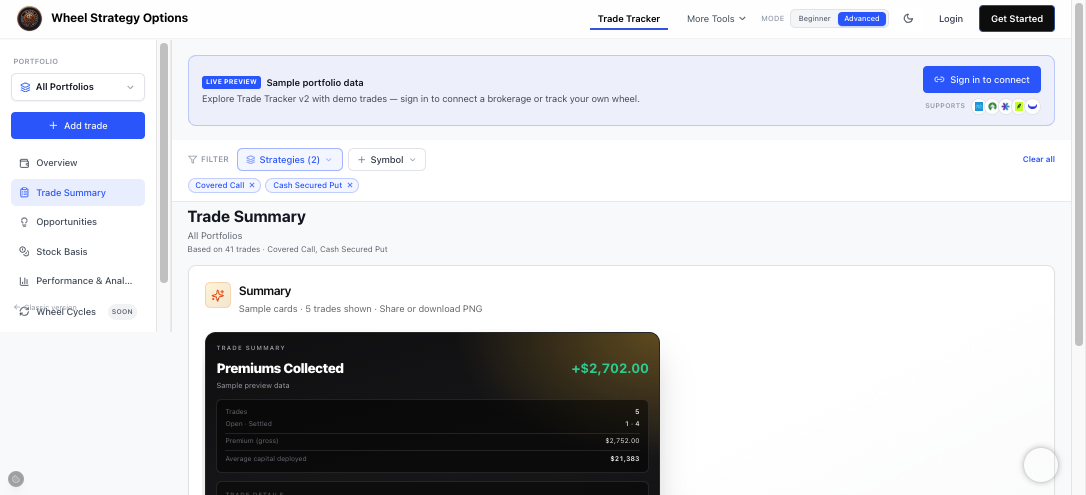
To use it:
- Open Trade Summary from the sidebar.
- The card reflects your current filters (portfolio, strategy, date range), so set those first.
- Click Download PNG to save the image, or Share or save to grab a link.
Each leg on the card normally shows Spot at open (stock price nearest the fill) and delta at open. That stock price is looked up once from Intrinio 1-minute bars and saved so later views don't refetch. Market data across the app is provided by Unusual Whales and Intrinio. During a market-data incident, either column may be temporarily unavailable while its external lookup is paused.
Closed standalone legs also show % Captured after Net — how much of the sell-to-open premium you kept as net P/L (whole dollars and whole percents). Open legs show a dash; roll groups leave % Captured blank because roll nets are chain credits, not a simple keep-% of one fill.
Because it respects your filters, you can produce a card for a single account, a single ticker, or your whole book.
The full History log
The History section is your permanent record. It has two tabs:
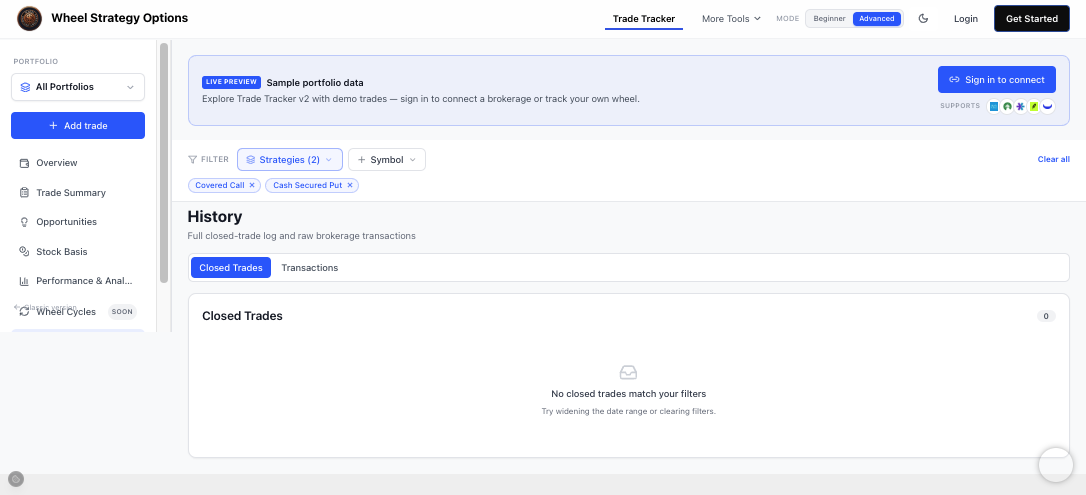
- Closed Trades — every settled trade with its outcome and P/L. Filter by strategy, symbol, or date range to find exactly what you need.
- Transactions — the raw, broker-level activity behind your trades (useful for reconciling or auditing).
Broker-synced vertical, calendar, and diagonal spreads that opened together (same size, buy-to-open + sell-to-open) collapse into one Closed Trades row with net premium on the short strike. The individual fills stay on Transactions. Iron condors, butterflies, and other complex structures may still show as separate legs.
If History looks empty, widen the date range or clear your filters — the log defaults to a recent window.
When to use which
- Use Trade Summary to communicate results at a glance.
- Use History to audit, reconcile against your broker, or research a past decision in detail.
Frequently Asked Questions
Does the Trade Summary card respect my filters?
Yes. It reflects your currently selected portfolio, strategies, and date range, so you can generate a summary for one account, one ticker, or your entire portfolio.
Why is my History empty?
The closed-trade log defaults to a recent date window. If you don't see older trades, widen the date range or clear your filters and they'll appear.
What is Spot at open on the Trade Summary card?
Spot at open is the underlying stock price nearest the fill, from Intrinio 1-minute bars — market data across the app is provided by Unusual Whales and Intrinio. Date-only fills use the 09:30 ET bar. The value is saved so the card does not refetch it. During a market-data incident, Spot or Delta at open may be temporarily hidden while its external lookup is paused.
What is % Captured on the Trade Summary card?
% Captured is the share of sell-to-open premium kept as net P/L on standalone closed legs (shown after Net). Open legs show a dash. Roll-group rows leave the column blank because roll nets are chain credits, not a simple keep-% of one fill.
Why did my calendar or diagonal spread show as two trades?
Broker sync now pairs vertical, calendar, and diagonal spreads opened together into one closed row with net premium on the short strike. Raw legs stay on History → Transactions. Iron condors and butterflies may still appear as separate rows.