How to Add Trades and Create Portfolios
Log a covered call or cash-secured put by hand, and organize trades into separate manual portfolios.
Two ways to get trades in
You can either add trades manually or connect a brokerage (covered in the next tutorial). Manual entry is perfect if you trade at a broker that isn't supported yet, or you just want to log a few positions to try the tool.
Adding a trade manually
Click the blue Add trade button at the top of the sidebar to open the trade form. Every field you need is on one screen:
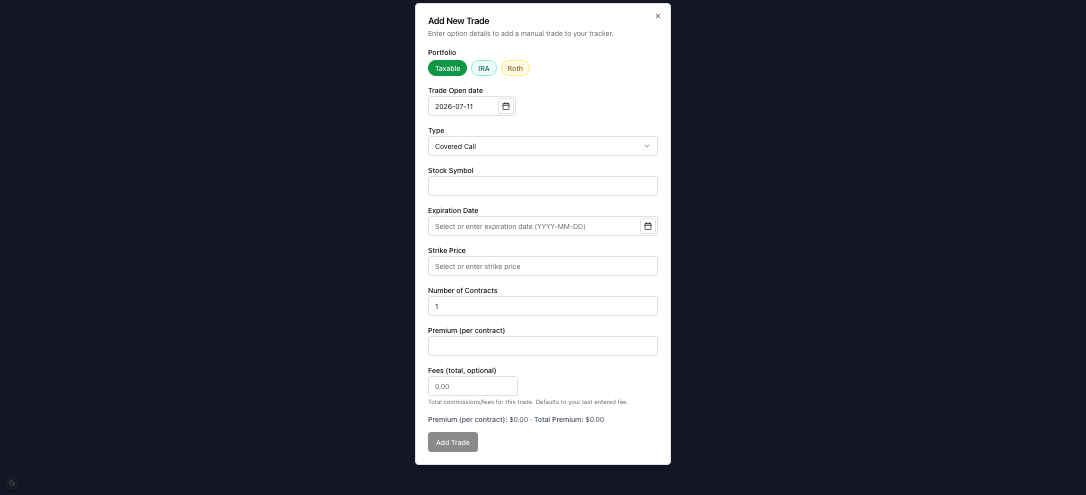
- Pick the portfolio the trade belongs to and set the trade open date.
- Choose the type — Covered Call or Cash Secured Put.
- Enter the symbol, expiration, strike, number of contracts, and premium (per contract).
- Optionally add fees for the trade — the running Premium and Total Premium totals update as you type.
- Click Add Trade. It instantly flows into your Overview, Performance, and Stock Basis numbers. Once it closes, use the row's Actions menu to mark it expired, assigned, or closed.
Tip: premium is entered per contract, the same way it's quoted on your broker. A $1.60 credit is entered as 1.60, and the form multiplies it by contracts × 100 to show your total premium.
Organizing with portfolios
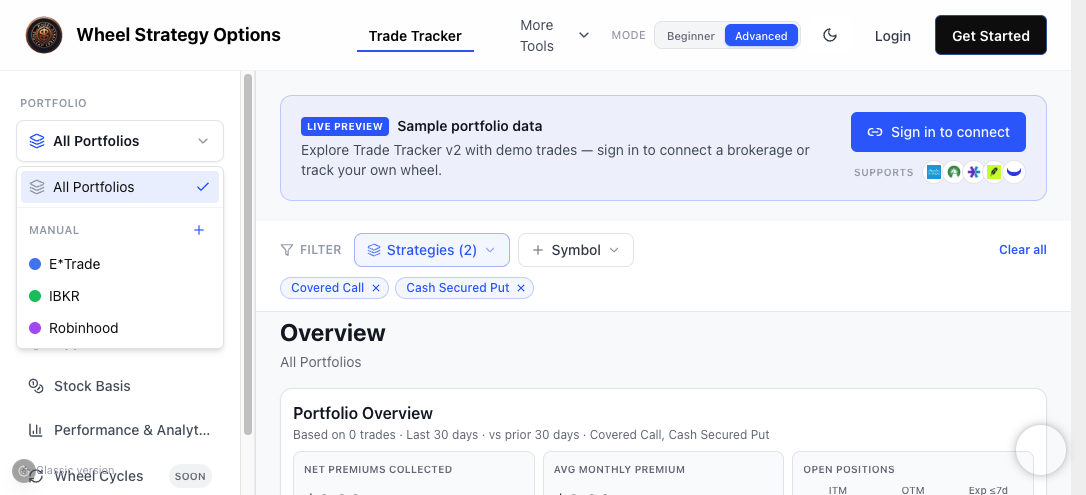
Trades live inside portfolios. Use the selector at the top of the sidebar to switch between All Portfolios and any individual account. Each portfolio gets its own color so it's easy to tell apart in tables.
To create one:
- Open the portfolio selector.
- Click Create manual portfolio (the + next to "Manual").
- Give it a name and pick a color.
Manual portfolios are great for separating a taxable account from an IRA, or for paper-trading a new idea alongside your real positions.
Editing or removing a trade
Every row in the positions and history tables has an Actions menu. Use it to edit the details of a trade, mark it closed/assigned, or delete it. Changes recalculate your metrics immediately.
Delete steps (manual portfolios only)
- Open the portfolio selector and pick the manual portfolio that holds the trade (not a broker-synced account).
- Go to Positions or History.
- Open the row Actions menu → Delete (confirm if prompted).
To clear an entire temporary journal (for example one you created while waiting on broker sync), remove that manual portfolio from the selector once the synced account looks correct — so you do not keep duplicate legs.
Broker-synced portfolios are read-only. You cannot delete or “force close” imported trades in the tracker; use Brokerage Connection → Sync now and wait for the broker to report the close.
Frequently Asked Questions
Can I keep separate portfolios for different accounts?
Yes. Create a manual portfolio for each account, give each a color, and switch between them (or view All Portfolios combined) from the selector at the top of the sidebar.
How do I delete manually entered trades?
Select the manual portfolio, open Positions or History, then use the row Actions menu → Delete. You can also remove the whole manual portfolio. Synced brokerage portfolios are read-only — re-sync instead of deleting imported legs. After sync catches up, delete temporary manual duplicates.