Connecting a Brokerage to Auto-Import Trades
Link a supported broker so positions, equity holdings, and history sync in automatically.
Why connect a brokerage?
Auto-import keeps your tracker up to date without any typing. Once linked, the Trade Tracker pulls in your options positions, equity holdings, cash balance, and transaction history, and keeps them in sync as you trade.
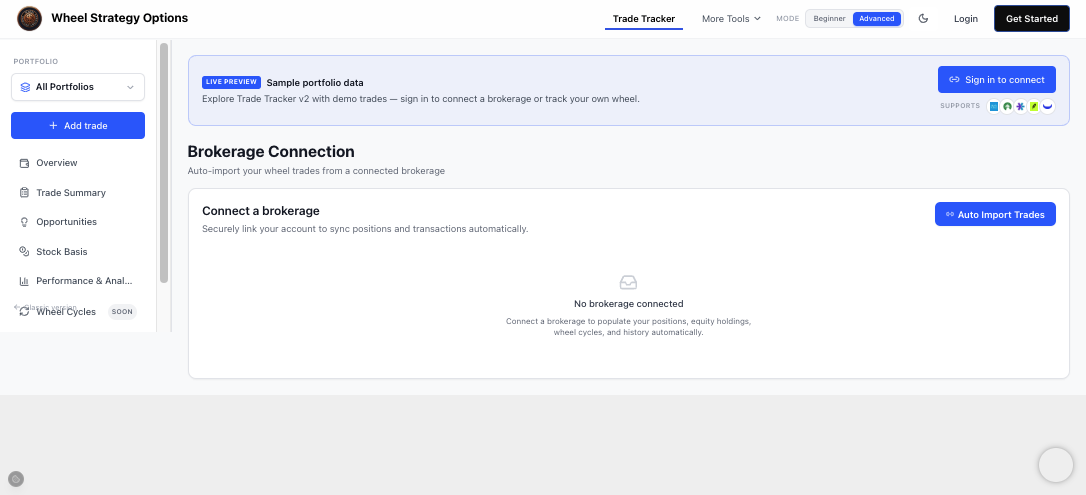
How to connect
- Open the Brokerage Connection section from the sidebar.
- Click Link a Brokerage Account (or Connect brokerage from the Overview banner).
- Sign in to your broker through the secure connection flow and authorize read-only access.
- Pick which account(s) to import. Each connected account becomes its own portfolio.
Connections are read-only — the tool can see your positions and history, but it can never place or modify trades.
How far back does import go?
On the connect screen, pick a start date or a lookback preset before you authorize:
- Signup trial — short preview window (~90 days) to prove the connection works.
- Pro — up to 2 years.
- Ultra and Maxx — up to 5 years.
The broker still has to send that history. If they only share one year of data, that is all that imports. After you upgrade, open Brokerage Connection and use Sync now (or expand history) to pull an older start date without disconnecting.
Signup trial vs after trial
During an active signup trial, you can connect one brokerage with limited import/preview. When that trial ends, reconnecting or syncing a brokerage requires Ultra. You can still add trades manually on Free (within the manual trade limit). Trade Tracker shows a clear Ultra upgrade when you try to connect after trial.
Manual and synced, side by side
You can mix both approaches. Synced brokerage portfolios sit alongside any manual portfolios you've created, and All Portfolios rolls everything up into one set of numbers. That's handy if one of your brokers isn't supported yet — track it by hand while the rest sync automatically.
Keeping data fresh
Synced accounts refresh on their own, and the Overview and Positions tables reflect the latest prices when you open them. If something looks stale, revisit the Brokerage Connection section and click Sync now.
Disconnect or reconnect
Each linked brokerage card has Disconnect (with a confirm step). Disconnecting removes that SnapTrade link and deletes imported trades for that connection’s current accounts — you can link again later and re-sync.
If a connection shows Needs reconnect, use Reconnect on the card (or the banner on other Trade Tracker pages) to re-authorize without losing your other linked brokerages when possible.
Frequently Asked Questions
My trial ended — can I still connect a brokerage?
Broker connect and sync after the signup trial require Ultra. You can still journal trades manually on Free within the manual trade limit. Use the Ultra upgrade on Trade Tracker to restore automatic brokerage sync and full analytics.
Is connecting a brokerage safe?
Connections are read-only and handled through a secure, dedicated aggregation flow. The Trade Tracker can view positions and transactions to build your analytics, but it can never place, modify, or cancel trades.
How do I disconnect a brokerage?
Open Brokerage Connection, click Disconnect on the brokerage card, and confirm. That removes the link and imported trades for the connection’s current accounts. You can link again later and sync fresh.
Which brokers are supported?
Support is expanding over time. Check the Supported Brokers page for the current list. If yours isn't there yet, you can still track it with a manual portfolio.
How far back can I import?
Pick a start date when you connect. Pro can import up to 2 years; Ultra and Maxx up to 5 years; signup trial is about 90 days. After an upgrade, expand older history from Brokerage Connection without disconnecting. Actual depth depends on what your broker shares.