How to Create a Stock Watchlist (Save & Reload Your Tickers)
Build a reusable list of tickers on the screener, optionally pair it with filters, and save it as a screener you can load from the dropdown in one click.
The short answer
Wheel Strategy Options doesn't have a separate "stock watchlist" page. Instead, you add ticker pills to the screener search bar, then Save Screener to store that list (with or without filters). Next time, pick it from the Saved Screeners dropdown — your tickers and filter setup reload together.
Not the Contract Watchlist. The Contract Watchlist saves individual option contracts you want to track. This guide is about saving a list of stocks you wheel regularly.
Where to add stocks
Open the Covered Call screener or Cash Secured Put screener. At the top of the page you'll see:
- Saved Screeners dropdown (left) — load a configuration you've saved before
- Ticker search bar (center) — type symbols; each one appears as a blue pill you can remove with the ×
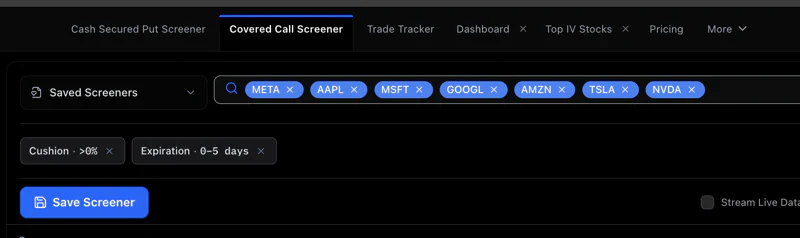
Type a symbol and press Enter (or comma) to add it. Repeat for every stock in your wheel universe — e.g., META, AAPL, MSFT, GOOGL, AMZN, TSLA, NVDA.
You can also open the omnisearch overlay (Cmd/Ctrl+K) to search and add tickers with autocomplete.
Two ways to save
Option A — Stocks only (simple watchlist)
Best when you want a fixed list of names and will change filters each session.
- Add your tickers as pills (nothing else required).
- Click Save Screener (bottom-left of the filter bar).
- Name it something memorable — e.g., "My Wheel Stocks" or "Tech Watchlist".
- Sign in if prompted (saving requires an account; Pro unlocks unlimited saved screeners).
The saved screener stores only your tickers. When you load it, the screener runs against just those symbols with whatever default or preset filters are active.
Option B — Stocks + filter configuration (full playbook)
Best when you run the same screen every week — same delta, DTE, cushion, etc.
- Add your tickers as pills.
- Set filters (or apply a preset), e.g. Cushion > 0% and Expiration 0–5 days.
- Click Save Screener and name it — e.g., "Weekly CC — Tech List".
- Load it later from the Saved Screeners dropdown.
Everything reloads together: tickers, filter pills, and sort order. Pro and Ultra members can also turn on email alerts when new contracts match a saved screen.
Load a saved watchlist
- Open either screener.
- Click the Saved Screeners dropdown (document icon, top-left).
- Select your saved name — tickers and filters populate instantly.
- Results refresh for only those stocks.
Manage, rename, or delete saved screeners anytime from My Saved Screeners in the More menu (/saved-screeners).
Example workflows
Sunday wheel sweep — stocks only
- Save tickers: AAPL, MSFT, NVDA, AMZN.
- Each Sunday: load "Wheel Stocks", apply the Earnings Safe preset, sort by Rating.
Weekly income — stocks + filters
- Save tickers + Cushion > 0% + DTE 0–5 days + Delta 0.20–0.30.
- Load every Monday; pick the top contracts from your list.
Covered calls on shares you own
- Save just the tickers you hold (e.g., TSLA, META).
- Switch to the CC screener, load the list, set Moneyness so strikes stay above your cost basis.
Tips
- Start small. Five to ten liquid names beat a 50-ticker list you never review.
- One list per strategy. Separate CSP and CC watchlists if you use different filters.
- Update in place. Load a saved screener, add or remove tickers, then save again (overwrite or save as a new name).
- Free vs Pro. You can add tickers and screen without Pro. Saving and reloading configurations — plus email alerts — requires Pro or Ultra. See Pricing.
Where to go next
- Ticker Search filter — ad-hoc symbol entry without saving
- Options Screener Overview — full 5-minute tour
- Contract Watchlist — save specific option contracts to monitor
Frequently Asked Questions
How do I create a stock watchlist on Wheel Strategy Options?
Add ticker symbols in the screener search bar (they appear as blue pills), then click Save Screener and give it a name. Load it later from the Saved Screeners dropdown. You can save tickers alone or tickers plus your filter settings together.
Is a saved screener the same as the Contract Watchlist?
No. A saved screener stores stocks (and optional filters) for repeat screening. The Contract Watchlist (/watchlist) tracks individual option contracts you want to monitor — different feature, different purpose.
Do I need Pro to save a stock watchlist?
You need to sign in to save. Unlimited saved screeners and email alerts are Pro and Ultra features. Adding tickers and running screens is free without saving.
Can I save just tickers without any filters?
Yes. Add your stocks as pills and click Save Screener — no filters required. When you load it, your tickers return and you can apply any preset or filters for that session.
How do I update my watchlist after saving?
Load the saved screener from the dropdown, add or remove ticker pills, adjust filters if needed, then Save Screener again — either overwrite the same name or save under a new name.